[0.5v] Shirohane Controller Plugin for VNyan and Windows - Release
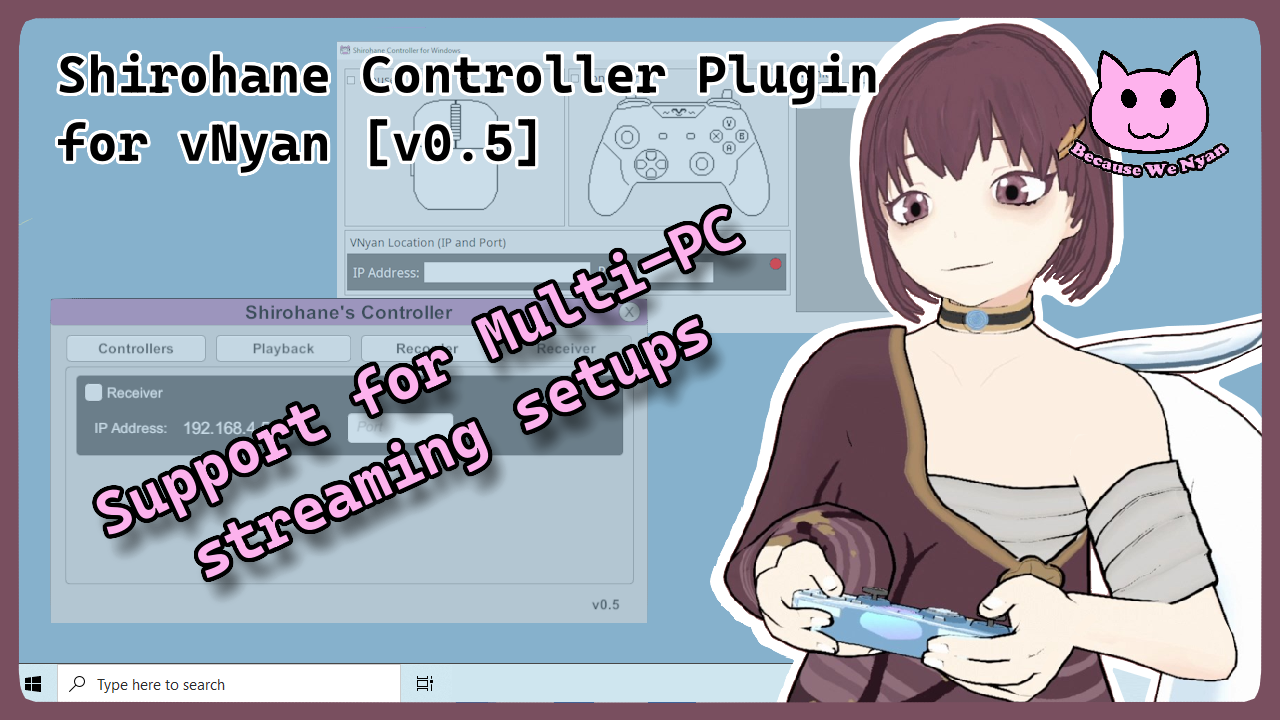
VNyan users with duel PC streaming setups will dedicate one computer to gaming, and the other to streaming/video encoding (running OBS and VNyan). Version 0.5 of the "Shirohane Controller Plugin" adds support for these duel PC streaming setups through the addition of the “Shirohane Controller - Receiver" and the "Shirohane Controller for Windows" client application.
- Install "Shirohane Controller for Windows" on your dedicated gaming computer in order to send controller and mouse parameters across your local network to VNyan.
- Activate the “Shirohane Controller - Receiver" to receive incoming controller and mouse data and make them available as VNyan parameters.
Controller Receiver
The Shirohane Controller Plugin now has a Receiver interface, which will connect to a “Shirohane Controller for Windows” client program. To use the receiver the following steps should be followed.
- Open the “Windows Defender Firewall with Advanced Security” application. Create a new incoming rule, adding a firewall exception for VNyan running on your private network. Allow transfer of both incoming and outgoing controller data.
- Open the Shirohane Controller Plugin UI, and open the Receiver Tab. Using this interface, specify the port number that VNyan will accept incoming data from.
- Activating the “Shirohane Controller” Receiver will cause the Red Status circle to turn Yellow and start listening for incoming data from a “Shirohane Controller for Windows” client program.

The Receiver can also be integrated into the VNyan node graphs using the following triggers.
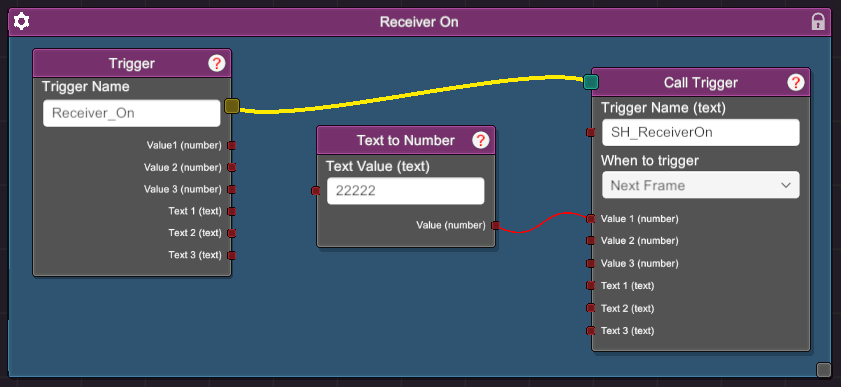
The following node graph shows how to use the SH_ReceiverOn trigger to turn on the receiver. In this example a “Text to Number” node is used to pass the port number of 22222 to the receiver before turning it on.
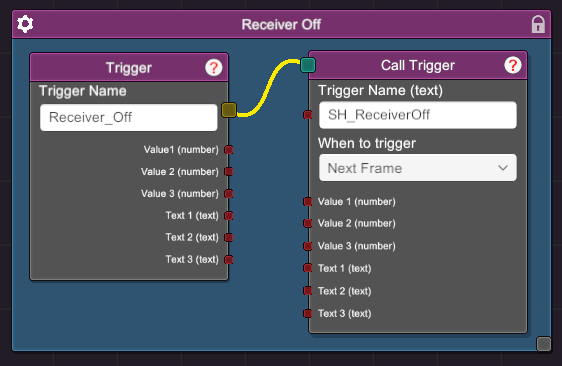
SH_ReceiverOff trigger can be used to turn off the receiver.
Shirohane Controller for Windows
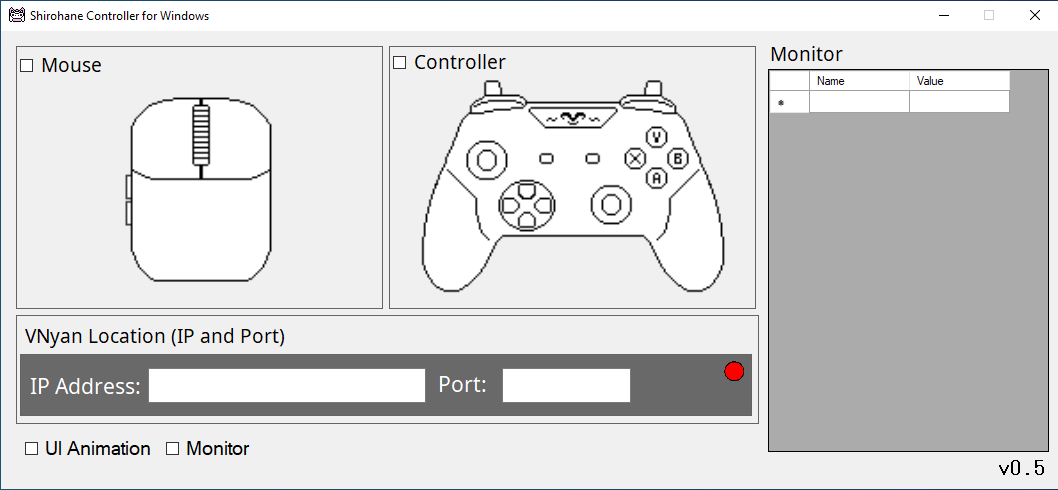
The “Shirohane Controller for Windows”, is a client application which is designed to installed on the gaming PC. Like the VNyan plugin, you can chose to activate the Mouse or Controller. Once activated, mouse and controller parameters are monitored and are sent across your private network to VNyan.
To use the client application, the following steps should be followed.
- Open the “Windows Defender Firewall with Advanced Security” application. Create a new incoming rule for the “Shirohane Controller for Windows”, allowing to to send and receive data on your private network.
- (Optional) Install a Xbox controller emulator such as DS4Windows to support PlayStation, Switch or Generic controllers.
- Start the “Shirohane Controller for Windows” application, and toggle the mouse and controller check-boxes to start monitoring the supported input devices.
- The UI Animation and Monitor check-boxes can be activated to display the collected input. These are visual effects and do not have any effect on sending the controller input across your network and should be disabled to optimize performance.
- Specify the IP and Port number of the machine running VNyan. The IP and Port Number can be copied directly from the VNyan receiver. If the connection is successful, the Red status circle will turn Blue.

As always, any installation and usage issues can be reported on the "Shirohane's Controller (and Mouse) Plugin" post on Suvidriel's VNyan discord server.
Follow the Shirohane bluesky or Itch.IO page for plugin updates and the youtube page for plugin tutorials.
Leave a comment
Log in with itch.io to leave a comment.